
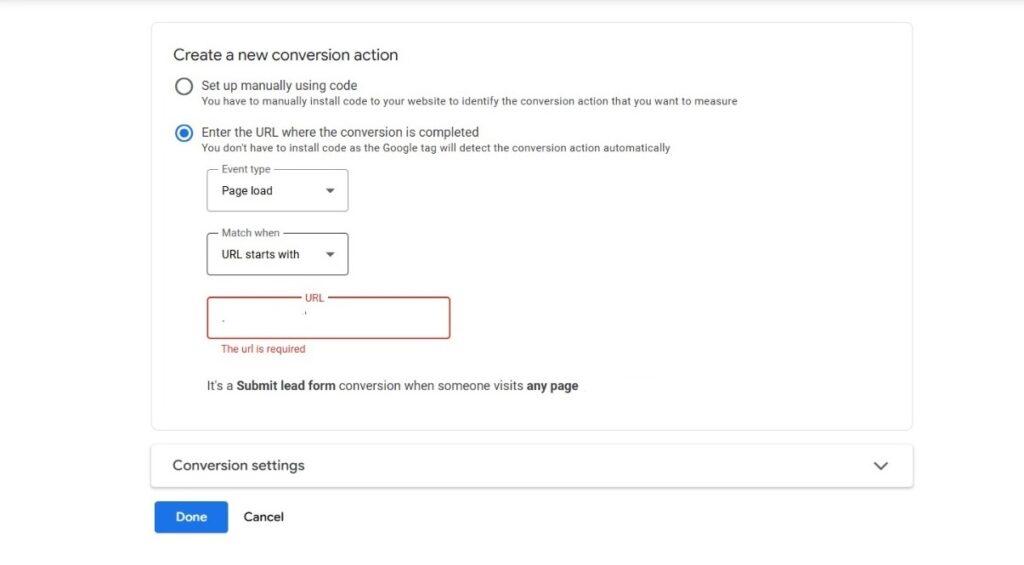
Google has introduced the ability to set up conversion tracking in Google Ads simply by specifying the URL of the page where the conversion occurs—like a thank-you page or confirmation screen—making tracking setup faster and more accessible than ever before. Here’s a step-by-step guide to using URL-based conversion tracking in Google Ads.
What Is URL-Based Conversion Tracking?
Google Ads now allows advertisers to track conversions by identifying a specific page URL as the conversion event. Whenever users reach this URL—triggered by actions like engaging with a lead form, completing a purchase, or subscribing to a newsletter—a conversion is recorded automatically in your ad reports.
Why Is This Feature Important?
- It eliminates the need to manually install tracking tags for simple page-based conversions.
- It streamlines the process for advertisers who want to track basic actions like form submissions, purchases, or sign-ups.
Step-by-Step: Set Up Conversion Tracking With a Page URL
1. Access Google Ads Conversion Tracking
- Open your Google Ads account.
- Click the “Goals” icon in the left menu.
- Select “Conversions” and then click “Summary”.
2. Create a New Conversion Action
3. Add or Select a Conversion Page URL
- If Google suggests URLs automatically (like common thank-you pages), review and, if appropriate, click “Accept Suggestion”.
- To add a custom page URL:
4. Enter Your Conversion Page URL
- Type the full URL (or relevant part) for your conversion page—for example, www.example.com/thank-you
- Click “Add” to confirm.
5. Finalize and Review
- Review your new conversion action details.
- Optionally, enable enhanced conversion settings.
- Click “Finish” to save your tracking setup.
Tips for Using URL Conversion Tracking
- This method works best for conversions that reliably redirect to unique URLs, such as dedicated confirmation or thank-you pages.
- For more complex conversions—like embedded pop-ups, external payment gateways, or dynamic events—traditional tag-based tracking or Google Tag Manager may still be required.
- Always test your setup using Google’s Conversion Tracking diagnostics or preview options after implementation.
Conclusion
Google’s new URL-based conversion tracking gives marketers an easier, faster way to record conversions directly from page visits, improving accessibility for advertisers who may not have deep technical expertise. By following the steps above, conversions can now be set up in just a few clicks—no manual code required—for straightforward, URL-based success measurement.